
Fill and Sign Easy PDF Editor
Amplify·Business
4.4465.00 Reviews
- Version
- 2.9.8
- Installs
- 1.00M
- Age Rating
- Everyone
Screenshots
Our Review of Fill and Sign Easy PDF Editor
 Analysis by Appyee
My first useful test of a PDF signing app is simple: can I get a form from my phone, fill it in, and send it back without turning the job into a project? Fill and Sign Easy PDF Editor is aimed at exactly that kind of task. It is a free business app from Amplify·, with optional in-app purchases, and its focus is practical rather than elaborate: work with a PDF, add the information or signature it needs, then share the result.
That focus makes it easier to approach than a full desktop document suite, but it also helps to know what you are choosing. I see it as a handy tool for routine forms and quick markups, not a replacement for a computer when a document needs careful layout work, complex collaboration, or a formal review process. If your immediate goal is to complete a straightforward form while away from your desk, the path from opening the app to a finished file is reassuringly direct.
Getting Started with Fill and Sign Easy PDF Editor
I’d start with a short, familiar PDF so the first session feels manageable: bring it into the app, check that the page is readable, then add one piece of information before moving on to a signature. That gives you a quick way to see whether the controls suit your phone and whether the finished file looks right. Once that basic path feels comfortable, you can decide whether it fits the documents you handle regularly.
What to expect from a mobile PDF workflow
The app’s purpose is clear from the moment you decide what you need to do: bring a document into the app, edit or annotate it, and pass it along. The store summary describes electronic signing and form filling, and that is the most useful way to think about it. It is not necessary to learn a large collection of document tools before you can tackle a basic form.
On the store, it sits in the business category and has a 4.4 average from around 5,100 ratings, with over 1 million installs. That gives a new user a sense that it is an established option, though popularity alone cannot tell you whether its particular workflow suits your documents. Its age rating is Everyone, and the current version is 2.9.5; it was released on August 20, 2019. The app is free to install, while in-app purchases range from $0.99 to $119.99 per item, so I would check the purchase details shown in the app before committing to anything beyond basic use.
First setup: bring in a document you can recognize
First things first, downloading the app is a breeze. Available on both Android and iOS, it’s just a quick tap away in your app store. Once installed, the interface is refreshingly straightforward. I love how everything is laid out — no clutter, just what you need right where you need it.
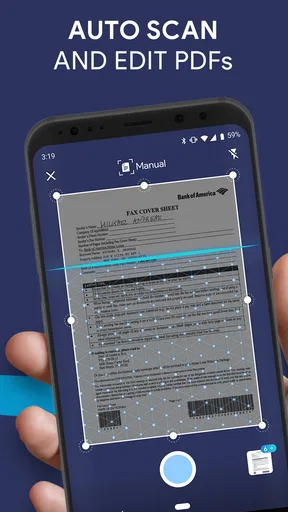
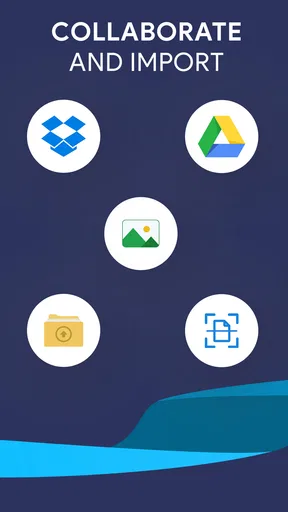
When you open the app, you’re greeted with a neat dashboard. Importing documents is a cinch. You can pull PDFs from your device storage, cloud services, or even snap a quick photo with your camera. This feature alone makes it super versatile, especially when you’re on the go.
For a first attempt, I would choose a short, familiar form rather than the most important document in your inbox. Check that the file opens in the right orientation and that its pages are legible before you start typing. If you are using a photograph of a paper document, take it in good light and keep the page as flat as possible; a clean source image makes every later step easier, regardless of the editing app.
Make the first successful edit deliberately
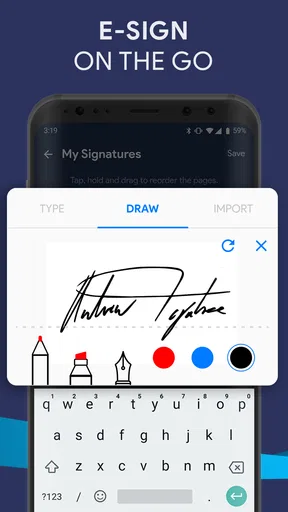
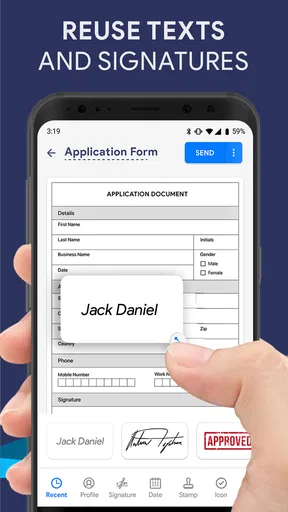
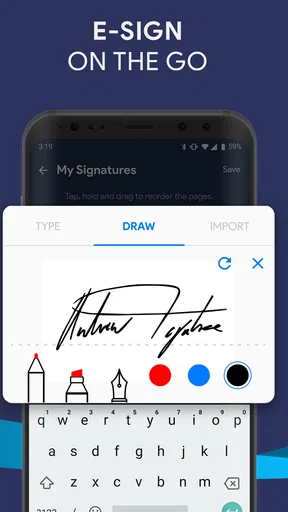
Now, onto the meat and potatoes of Fill and Sign Easy PDF Editor — the editing tools. Filling out forms is as simple as tapping on the field and typing away. The signature feature is pretty slick too. You can create a digital signature using your finger or a stylus, and save it for future use. No more printing, signing, and scanning back documents. Woohoo!
For a first signature, I recommend making a practice mark on a document that does not need to be sent. Finger signatures can look less controlled than handwriting on paper, especially on a small screen, so a stylus may help if you already have one. Before sharing a real form, zoom in and check that the signature sits inside the intended area and has not covered nearby instructions or text.
A useful habit is to complete the form in two passes. First, fill the obvious fields and add the signature; then review every page from top to bottom for blanks, accidental overlaps, and anything that needs a date or a second entry. This small pause is more valuable than rushing through a form on a phone, where a misplaced tap can be easy to miss.
Annotations are useful, but they are not the same as editing the original
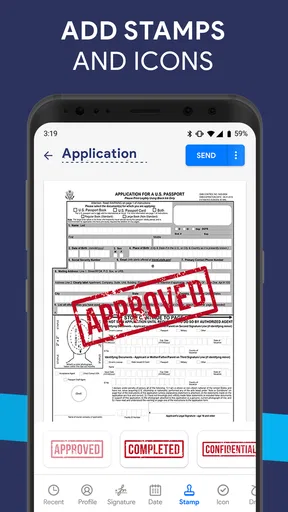
What really stood out to me was the annotation tools. You can highlight text, add comments, or even doodle if you’re feeling artistic. This can be a lifesaver when you need to mark up documents for work or school. Plus, the editing tools are intuitive, so there’s practically zero learning curve.
I find annotations especially useful when a document needs a human handoff. For example, I might highlight a clause for a colleague or leave a note beside a section that needs checking before the final signature. The trade-off is that a comment or highlight marks up the PDF; it does not necessarily change the underlying wording of the document. If you need to rewrite paragraphs, adjust page design, or make precise changes to a complex file, a dedicated PDF editor on a computer is usually the better fit.
Sharing, saving, and keeping the right copy
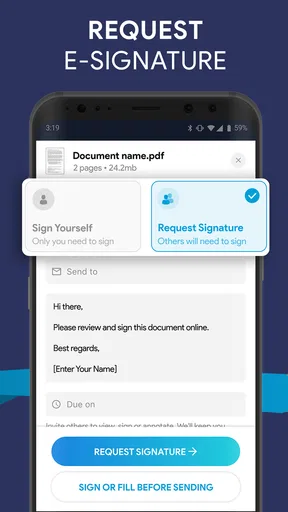
Once you’ve perfected your document, sharing it is just a tap away. The app supports a variety of sharing options, including email, messaging apps, or directly uploading to cloud services. It’s reassuring to know that your precious documents are easily accessible and shareable.
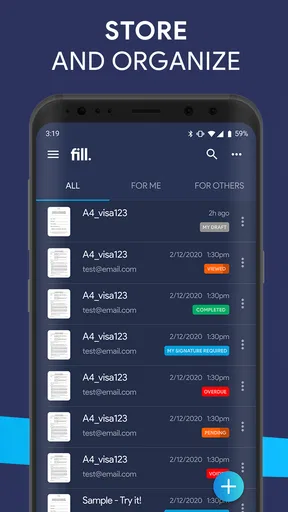
One feature that I didn’t expect but absolutely love is the ability to save documents securely within the app. It adds an extra layer of convenience, especially if you’re working on multiple forms and need a safe place to store them.
For an everyday example, imagine a school sends home a permission form while you are already out. You can bring the PDF into the app, fill in the required details, sign it, and send the completed file to the relevant person without waiting to get back to a printer. My practical tip is to give the finished copy a clear filename before sharing and keep track of which version you sent. That avoids the common mix-up between an untouched original and a completed form.
If a document contains private or sensitive information, take a moment to choose the recipient and sharing route carefully. Easy sharing is convenient, but it also makes it easier to send the wrong copy or choose the wrong contact in a hurry. I would open the final file once more before sending, confirm the content, and use the channel expected by the person or organization receiving it.
Where it fits compared with other options
From a design perspective, the app is clean and easy on the eyes. The developers clearly prioritized user experience, and it shows. Navigating through the app is a smooth experience, with no unnecessary frills to distract you. The color scheme is pleasant, and buttons are well-placed, making it easy to find what you’re looking for.
Compared with printing, signing by hand, and scanning a document back in, a mobile workflow is faster for simple forms and avoids needing a printer nearby. Compared with opening a PDF in a general file viewer, a dedicated fill-and-sign app puts the task of entering information and adding a signature at the center. The compromise is that a phone screen is still small: reviewing dense pages, checking fine print, and positioning marks precisely are easier on a larger display.
For occasional paperwork, this app can be simpler than a comprehensive PDF package. If you regularly edit long contracts, need detailed page rearrangement, or must coordinate formal approvals across a team, I would look at a more specialized desktop or document-management tool instead. The best choice depends less on the number of features and more on whether your real job is signing a form or managing the document through a larger process.
Who will get the most from it
So, who exactly is this app for? Honestly, if you ever deal with PDFs, it’s for you. Whether you’re a student, a professional, or just someone who occasionally needs to fill out forms, this app can simplify your life. It’s especially useful for remote work or study, where digital document handling is crucial.
I would especially recommend it to someone who handles short forms now and then: a student returning a signed school document, a freelancer completing routine paperwork, or a person who needs to add a quick note to a PDF while away from a computer. The app is also a sensible option for people who want a reusable signature rather than repeating the print-and-scan routine each time.
I would hesitate to rely on a phone app as the only step for documents where exact placement, extensive revision, or organizational approval rules matter. It is also not the right choice for someone who prefers to do all document work on a computer or who is uncomfortable handling personal paperwork on a phone. In those cases, a desktop PDF editor or the recipient’s own document process may be more appropriate.
Common points to check before you send
One question first-time users often have is whether they need to print anything to sign. For an ordinary PDF workflow, the point of the app’s digital signature tool is to add a signature on the device, so printing is not part of that basic process. Still, the person receiving the form may have specific requirements, so I would follow their instructions rather than assume every organization accepts the same kind of electronic signature.
Another practical question is whether a paper page can be used. The app lets you take a photo with the camera, which is useful when the document is physically in front of you. I would treat image quality as part of the workflow: capture the entire page, avoid shadows, and inspect the result before entering information. A photograph that is crooked or hard to read can make the finished document look less polished.
People also wonder whether saving a signature means they should use it on every form. I would not. A saved mark is convenient for routine paperwork, but it is still worth checking that the form is intended to be signed that way and that the signature belongs in that particular field. For documents requiring a special signing procedure, follow that procedure instead of relying on convenience.
Finally, the free download does not mean every optional item is free. The app has in-app purchases, so if a screen offers a paid option, read what it covers and decide whether it matches the task you have. For a one-off form, avoid purchasing anything until you have checked that the basic workflow meets your needs.
Why You Might Need This App
In a world where we’re constantly on the move, having a reliable tool like Fill and Sign Easy PDF Editor in your pocket is invaluable. It cuts down on time spent dealing with paperwork, letting you focus on what truly matters.
Final Thoughts
To wrap it up, Fill and Sign Easy PDF Editor is a solid app that delivers on its promises. It’s user-friendly, packed with useful features, and, most importantly, it works seamlessly. I’ve found it to be a reliable companion for handling PDFs, and I think you will too.
So, if you’re tired of the old print-sign-scan routine, give this app a shot. It might just become your new favorite tool for managing digital documents. Happy editing!
Verdict
Strengths of Fill and Sign Easy PDF Editor
- Intuitive interface for easy navigation.
- Quick import from cloud storage services.
- Robust security features for document safety.
- Supports a wide range of file formats.
- No ads in the premium version.
Limitations of Fill and Sign Easy PDF Editor
- Limited features in the free version.
- Occasional lag with large files.
- No offline mode available.
- Subscription can be expensive.
- Limited customer support options.
Other Releases by Amplify·
View All
FREE FAX App Send Fax, Receive
Business4.0
Similar Picks in This Category
View All
LinkedIn: Community & Network
LinkedIn3.8

Zoom Workplace
zoom.com4.1

Microsoft Teams
Microsoft Corporation4.6

Meta Business Suite
Meta Platforms, Inc.4.6

Webex Meetings
Cisco Systems, Inc.4.5

TeamViewer Remote Control
TeamViewer4.4
Frequently Asked Questions
What features does Fill and Sign Easy PDF Editor offer?
Fill and Sign Easy PDF Editor provides a comprehensive suite of tools for managing PDF documents. Users can edit text, insert images, and add annotations. The app also allows for electronic signatures, making it easy to fill and sign forms on the go. It supports cloud integration, enabling seamless document sharing and collaboration.
Is Fill and Sign Easy PDF Editor user-friendly for beginners?
Yes, Fill and Sign Easy PDF Editor is designed with an intuitive interface that caters to both beginners and experienced users. The app offers a straightforward navigation system with clear instructions, ensuring that even those new to PDF editing can perform tasks effortlessly. Helpful tutorials and customer support are also available.
Can I use Fill and Sign Easy PDF Editor offline?
While Fill and Sign Easy PDF Editor offers robust offline capabilities for editing and signing documents, certain features like cloud storage access and sharing require an internet connection. Users can enjoy the flexibility of working without connectivity but should be aware that syncing changes might need to be done online.
Is my data secure with Fill and Sign Easy PDF Editor?
Security is a top priority with Fill and Sign Easy PDF Editor. The app employs advanced encryption to protect your documents during storage and transmission. Additionally, user authentication processes ensure that only authorized individuals can access sensitive information, providing peace of mind for handling confidential documents.
Are there any costs associated with Fill and Sign Easy PDF Editor?
Fill and Sign Easy PDF Editor offers a free version with basic features. However, for advanced functionalities like extensive editing tools, additional cloud storage, and premium customer support, a subscription plan is available. Users can choose from monthly or yearly plans based on their needs and budget.
